Practical guide
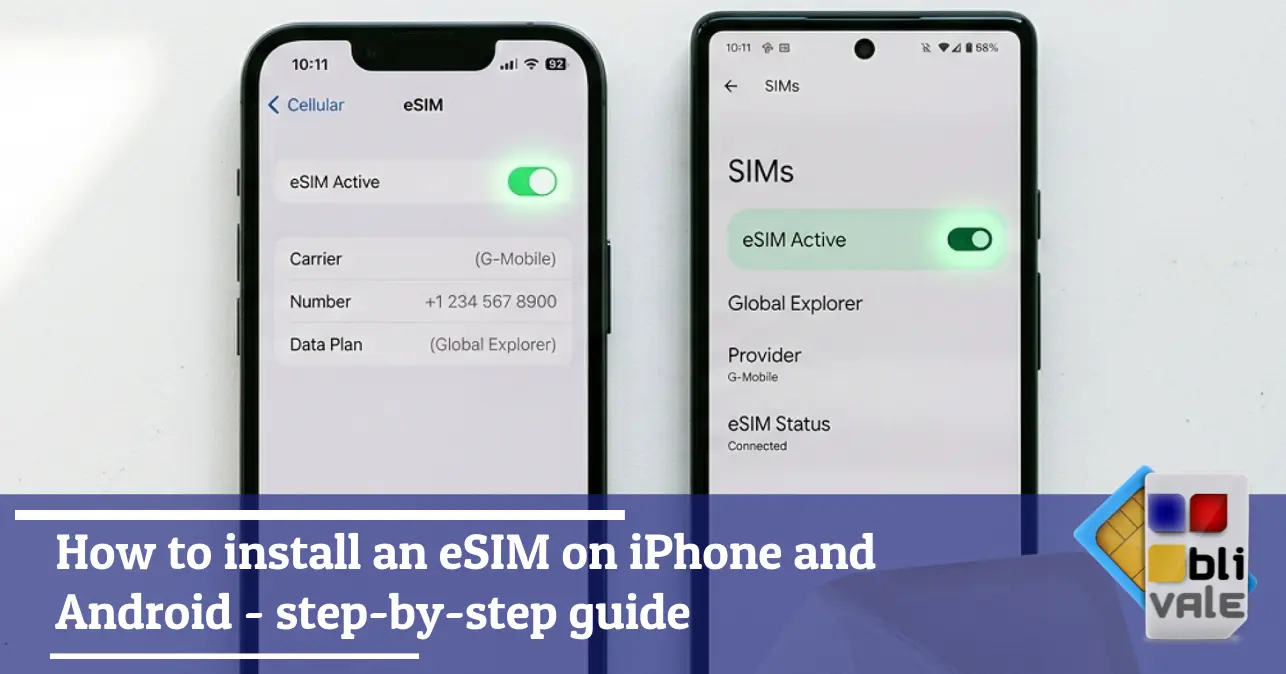
How to install an eSIM on iPhone and Android — step-by-step guide
"Is it complicated?" — no, it literally takes 2 minutes. Here are the exact steps for iPhone, Samsung Galaxy and any Android, with everything that can go wrong (and how to fix it).
Team BLIVALE
Practical guide
6 min read
1. Before you start — 3 things to check
Before scanning the QR code, check these three points. Skipping them is the main cause of installation issues.
⚠ Key requirement: to install the eSIM you need an active internet connection — Wi-Fi or mobile data. If you're already abroad without a connection, connect to the airport or hotel Wi-Fi before proceeding.
| What to check |
How to verify |
Status |
| Your phone supports eSIM |
Settings → Mobile Data → look for "Add eSIM" |
✓ iPhone XS+, Samsung S20+, Pixel 3+ |
| Your phone is not SIM-locked |
Settings → General → About → Carrier Lock (iPhone). If you see a single locked carrier, call your carrier to unlock — it's free once your 24-month contract has ended. |
✓ Most smartphones bought unlocked are carrier-free |
| You have your BLIVALE QR code |
Check the email you used to purchase — it arrives within a few minutes of your order |
✓ Search for "BLIVALE" or "eSIM QR" in your inbox |
| You are connected to the internet |
Wi-Fi or mobile data active on the device |
✓ Required to complete activation |
Open Settings
Tap the Settings icon (the grey one with gears) from your iPhone's Home screen.
Go to Cellular
Scroll down and tap
Cellular (or "Mobile Data" on some iOS versions).
Settings › Cellular
Settings
Wi-Fi ›
Bluetooth ›
Cellular ← tap here ›
Personal Hotspot ›
Tap "Add Data Plan"
At the top of the Cellular screen you'll find the
"Add Data Plan" button. On some iPhones (especially with newer iOS) you may see
"Add eSIM".
💡
If you don't see "Add Data Plan", your iPhone may be carrier-locked. Contact your carrier to unlock the device — it's free once your contract has ended.
Select "Use QR Code"
iPhone shows you three options. Choose
"Use QR Code" (not "Search for available plans" or "Enter details manually").
Add Data Plan › Use QR Code
The camera will open.
Scan the BLIVALE QR code
Open the BLIVALE email with the QR code on another device (laptop, tablet) or print it out. Point the iPhone camera at the code — hold it steady for a few seconds until the confirmation appears.
💡
You cannot scan the QR code from the same iPhone — the code must be displayed on a different screen or printed.
Confirm and name your eSIM
iPhone shows a confirmation screen. Tap "Continue". It will ask you to label the eSIM — choose "BLIVALE" or "Travel" so you can identify it easily. Tap "Continue" again.
Set the default data line
iPhone asks which line to use for data. Select
BLIVALE (or the name you chose). Tap
"Continue".
⚠️
Turn off data roaming on your home SIM: Settings → Cellular → [your home SIM name] → Data Roaming: OFF. Essential to avoid unexpected charges.
Activation complete
The signal bar with the BLIVALE network appears at the top of the screen. You're connected. Total time: about 2 minutes.
Open Settings
Tap the Settings icon (gear) from the Home screen or the notification panel.
Go to Connections → SIM Manager
Tap
Connections, then
SIM Manager.
Settings › Connections › SIM Manager
Tap "Add mobile plan"
At the top of the SIM Manager screen you'll find the "Add mobile plan" or "Add eSIM" button. Tap it.
Select "Scan carrier's QR code"
Samsung shows several options. Choose
"Scan carrier's QR code".
💡
On some Samsung models the option is called "Add via QR code" — it's the same thing.
Scan the BLIVALE QR code
Open the BLIVALE email on a laptop or tablet and point the camera at the QR code. Samsung recognises it in 2–3 seconds.
Confirm and set data to eSIM
Tap
"Add" to confirm. Then in SIM Manager set the BLIVALE eSIM as the default data line — tap
"Mobile data" and select the eSIM.
⚠️
Turn off data roaming on your home SIM: SIM Manager → [your home SIM] → Data Roaming: OFF.
Connected
The BLIVALE eSIM is active. It appears in the status bar.
🤖
Installation guide
Android — Google Pixel and others
Google Pixel 3+, Motorola, OnePlus, Xiaomi with eSIM
⏱ ~2 min
Open Settings
Go to Settings from the main menu.
Network & internet → SIM
Tap
Network & internet, then
SIM (or "SIM cards" on some models).
Settings › Network & internet › SIM
Tap "Add SIM" or the + symbol
At the top of the SIM screen you'll find an
"Add SIM" button or a
+ in the top right. Tap it.
💡
On Google Pixel the option is called "Download SIM" — it's the same thing.
Scan the QR code
The system opens the camera. Point it at the BLIVALE QR code from your email (opened on a laptop or printed). Recognition takes just a few seconds.
Confirm activation
Tap "Activate" or "Download" on the confirmation screen. The eSIM profile download takes 15–30 seconds.
Set eSIM as data line
Go back to Settings → Network & internet → SIM. Select the BLIVALE eSIM and set it as the
preferred SIM for data.
⚠️
Disable data roaming on your home SIM to avoid unexpected charges.
Done
The BLIVALE eSIM is active and appears in the status bar. You're connected.
5. How to use BLIVALE eSIM + your home SIM together
This is the setup used by most of our customers — and it works great.
Ideal configuration: physical home SIM active for calls and SMS on your number → BLIVALE eSIM as primary data line → data roaming disabled on home SIM.
On iPhone
Go to Settings → Cellular. Both lines are listed. Set:
- Default line: home SIM (for outgoing calls)
- Cellular data: BLIVALE eSIM
- Home SIM data roaming: OFF (essential)
On Samsung / Android
Go to Settings → Connections → SIM Manager. Set:
- Calls: home SIM
- Mobile data: BLIVALE eSIM
- Home SIM data roaming: OFF
6. Troubleshooting — what to do if it doesn't work
90% of installation problems have a simple cause. Here are the most common ones:
❌
I can't find "Add data plan" or "Add eSIM" in settings
+
Two possible causes:
1. Your phone doesn't support eSIM. Check the exact model — not all Samsung devices support it, for example (especially those sold in Asia).
2. Your phone is carrier-locked (SIM-locked). Call your carrier and ask to unlock it — it's free once your 24-month contract has ended.
📷
The camera doesn't recognise the QR code
+
Solution 1: make sure the QR code is displayed on a different screen (laptop, tablet) — you cannot scan it from the same phone you're installing the eSIM on.
Solution 2: increase the screen brightness of the device showing the QR code. Hold your phone 15–25 cm away.
Solution 3: most eSIMs also allow manual code entry — in the BLIVALE email you'll also find the SM-DP+ Address and Activation Code to enter manually if the QR doesn't work.
🔄
The installation got stuck or returned an error
+
1. Check your internet connection. Installation requires an active connection — Wi-Fi or mobile data.
2. Restart your phone and try again from the beginning.
3. Don't scan the QR code twice. Each BLIVALE QR code works only once — if you got an error and want to retry, contact BLIVALE support to receive a new QR code.
📶
The eSIM is installed but there's no signal
+
1. Check that you're in a covered country. Look at the product page on blivale.com — each eSIM has a list of supported countries.
2. Set the eSIM as the default data line (see section 5 above).
3. Toggle airplane mode on and off once — this often forces the phone to connect to the correct network.
4. Check that the eSIM is enabled: Settings → Cellular (iPhone) or SIM Manager (Samsung) → the eSIM toggle must be green/active.
💸
I'm still being charged by my home carrier — why?
+
The most common reason: data roaming on your home SIM was left active. The phone used your home SIM for data instead of the BLIVALE eSIM.
Immediate fix: turn off data roaming on your home SIM right away (see section 5). Then check in Settings that the BLIVALE eSIM is set as the default data line.
For charges that have already occurred, contact your home carrier — in some cases you can request a refund, especially if they were automatic background charges.
7. Pre-departure checklist
Before leaving home, tick these boxes. They prevent 85% of problems.
✅ BLIVALE eSIM Checklist
I have purchased the BLIVALE eSIM and received the QR code by email
I installed the eSIM while connected to my home Wi-Fi
The BLIVALE eSIM is set as the default data line
I have disabled data roaming on my home SIM
I saved the QR code as a screenshot (just in case)
I confirmed that my destination country is in the coverage list
I tested the connection before leaving (open any website)
Final tip: install the eSIM the day before you travel, not at the airport. That way you have time to resolve any issues calmly, without rushing and with your home Wi-Fi available.
Don't have your BLIVALE eSIM yet? Choose the right plan for your trip:
Ready? Install your eSIM in 2 minutes.
Instant QR code · Real unlimited · 190+ countries · No FUP
Buy your eSIM →
B
Team BLIVALE
eSIM & international connectivity · blivale.com